Fixing Wi-Fi Dropouts in Your Kitchen Caused by Microwave Interference with Mesh Nodes
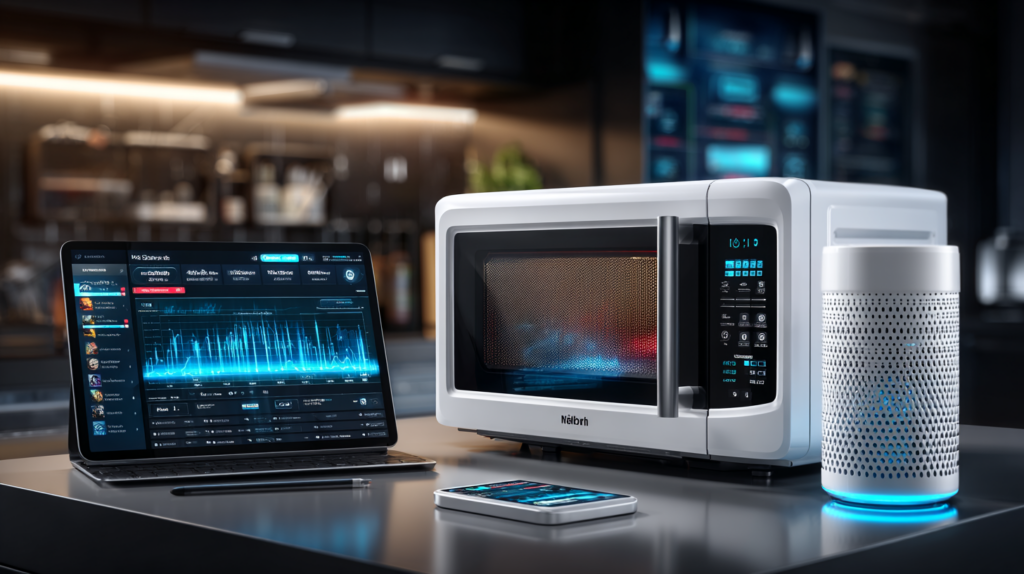
Kitchens are often the heart of the home, bustling with activity and, increasingly, reliant on Wi-Fi for smart devices like tablets, phones, or even connected appliances. But many people notice their Wi-Fi signal drops or slows down in the kitchen, especially when the microwave is running. This frustrating issue is caused by electromagnetic interference from your microwave, which can disrupt the 2.4 GHz Wi-Fi band commonly used by mesh networks.
Why Microwaves Cause Wi-Fi Dropouts
Microwaves operate on the 2.4 GHz frequency, the same as many Wi-Fi routers and mesh nodes. When the microwave runs, it emits electromagnetic waves that overlap with your Wi-Fi signal. Mesh systems can be particularly sensitive if a node is near the microwave, disrupting communication between nodes and devices.
Step-by-Step Solution
Step 1: Identify the Affected Mesh Node
Use your mesh app (Eero, Netgear Orbi, TP-Link Deco) to identify which node serves the kitchen area. Walk around with your phone’s Wi-Fi signal indicator on while the microwave runs to spot where signal weakens most.
Step 2: Relocate the Mesh Node
Move the affected node at least 6–10 feet away from the microwave, ideally on a shelf not directly facing the microwave door. Avoid metal surfaces, which amplify interference.
Step 3: Switch to the 5 GHz Band
The 5 GHz band is faster and far less prone to microwave interference. In your mesh app, enable 5 GHz priority or manually connect kitchen devices to 5 GHz. For a combined network, the app handles this automatically.
Step 4: Change the Wi-Fi Channel
If 5 GHz isn’t available on older devices, set the 2.4 GHz band to channel 1 or 6 in your router settings — these channels are least affected by microwave interference.
Step 5: Shield the Interference
Check your microwave’s condition — older appliances leak more electromagnetic waves. Place non-metal objects between the microwave and the node to absorb some interference.
Step 6: Test and Monitor
Use WiFi Analyzer (Android) or NetSpot (PC/Mac) to measure signal strength and interference levels in real time. Test during different times of day, as cordless phones add further interference.
Preventing Future Issues
Update your mesh firmware monthly, minimize 2.4 GHz devices in the kitchen, and have your microwave professionally checked if dropouts persist after all other steps.
Learn More
For a deeper dive into solving Wi-Fi issues with mesh systems, check out Wi-Fi Made Simple: A Beginner’s Guide to Mesh Networks. Buy now on Amazon.

Connor writes practical guides on Wi-Fi, mesh networks, and home security — breaking down complex IT topics into clear, beginner-friendly steps.
More about me →