How to See Exactly Who’s Connected to Your Wi-Fi — and Remove Strangers
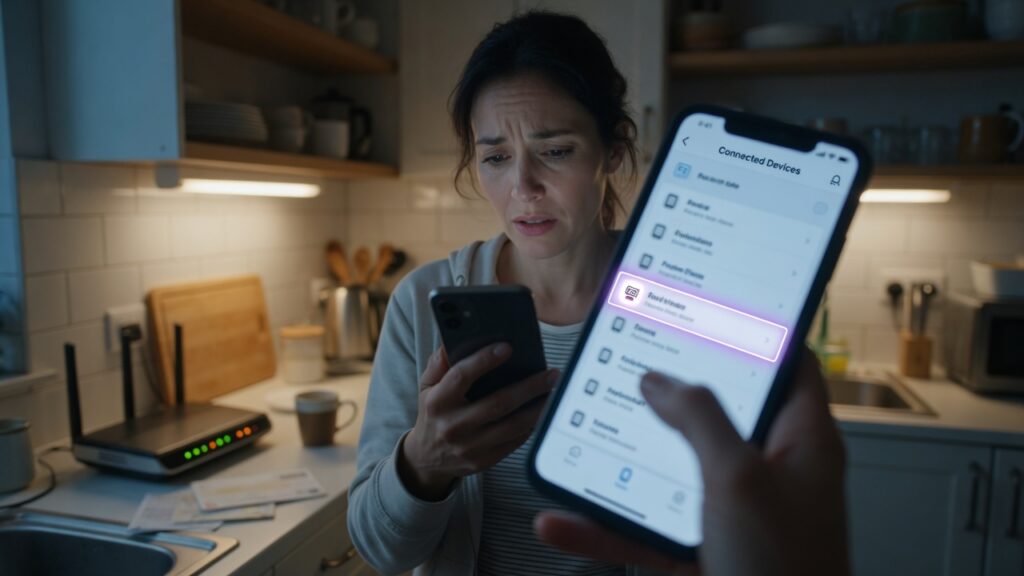
Here’s something most people never think about: right now, while you’re reading this, there may be devices on your home Wi-Fi that you didn’t put there.
Most of the time, that mystery device is just a phone belonging to someone who visited last month and never got removed. But sometimes it really is a neighbor who guessed your password, a previous tenant who still has the credentials, or a device you genuinely don’t recognize. Either way, you should know what’s on your network — and it takes about five minutes to check.
Why this is worth doing
Every device on your Wi-Fi shares your bandwidth. If someone is streaming video over your connection all day, you’re paying for it and your speeds are slower because of it.
More than that: devices on your network can, in many cases, see other devices on the same network. That includes your laptop, your phone, whatever’s on your NAS drive, your printer, possibly your baby monitor. Most home networks treat everything connected to them as trusted by default. A stranger on your Wi-Fi isn’t just getting free internet — they’re in the same room as your files, even if they’re sitting in a car outside.
Worth knowing, worth fixing.
Step 1: Log in to your router
Every router has a built-in admin interface — a web page you reach through your browser. The address is almost always printed on a sticker on the bottom of the router, along with the factory default username and password. Common addresses are 192.168.1.1 and 192.168.0.1, though some routers use 10.0.0.1 or something slightly different.
Type that address directly into your browser’s address bar (not the search bar) and press Enter. You should see a login page.
If you’ve never changed the admin credentials, the defaults are on that sticker. If you changed them at some point and can’t remember, you’re not stuck — most routers have a reset button, though using it will wipe your settings.
Mesh system users: Skip the browser step. Open the app — Eero, Google Home, TP-Link Deco, Netgear Orbi, whichever you have — and find the connected devices section there. The principle is the same; the interface is different.
Step 2: Find the device list
Once you’re logged in, look for a section called something like Connected Devices, Device List, DHCP Clients, or Attached Devices. Every router brand puts this somewhere slightly different, but it’s always there. Usually it’s on the main dashboard or under a Wireless or LAN menu.
What you’ll see for each device:
- Device name — Sometimes helpful (“Connor’s iPhone”), sometimes useless (“android-3f2c1a”), sometimes just blank
- IP address — A number like 192.168.1.14. You can mostly ignore this.
- MAC address — A unique hardware identifier that looks like
A4:C3:F0:12:34:56. This one’s useful.
Step 3: Go through the list methodically
The goal is simple: can you account for every entry?
Some will be obvious. Others will be cryptic labels or just a MAC address. Here’s a practical way to work through it: turn off the Wi-Fi on your phone, put your laptop to sleep, power down the smart TV, and then refresh the device list. Watch which entries disappear. Whatever’s still there after you’ve switched off everything you control is either something you forgot about (a printer? an old gaming console?) or something that shouldn’t be there.
If you need to identify a specific unknown device by its MAC address, you can use the first six characters to look up the manufacturer. Search for “MAC address lookup” and paste those characters into any of the free lookup tools you’ll find. It’ll tell you whether that unknown entry is an Apple device, a Samsung phone, an Amazon gadget, or some other hardware. That context often makes the identification obvious.
Step 4: Remove anything you can’t account for
Two options:
Block by MAC address. Most routers have a MAC filtering or access control section. Add the unknown device’s MAC address to a blocklist. It won’t be able to reconnect — even if it tries — because that hardware ID is flagged. This is surgical and doesn’t disrupt your other devices.
Change your Wi-Fi password. The nuclear option, but sometimes the cleanest one. Change the password, then reconnect your own devices one by one. Everything that was connecting without your permission is now locked out. While you’re in the router settings, change the admin password too — that’s the one that controls your router settings, and if it’s still at the factory default, anyone who gets on your network can potentially change your router’s configuration.
A note on going forward
After you’ve cleaned things up, most people find a monthly check takes about two minutes. If you want something more automated, apps like Fing (free, iOS and Android) can notify you when a new device joins your network. It’s not essential, but it’s a nice early warning if something unexpected shows up.
The other preventive step: use your router’s guest network for visitors. Give guests their own password on a separate isolated network, and they can never end up on your main one. I’ll cover setting up a proper guest network separately — but for now, knowing who’s on your network is the first step, and you’ve done it.
One more thing
If you found unfamiliar devices and you’re genuinely worried, change both passwords, make them strong (twelve or more characters, not a dictionary word), and don’t write the main password on a sticky note near the router. That might sound obvious, but I’ve walked into a lot of home offices over the years. The sticky note is more common than you’d think.

Connor writes practical guides on Wi-Fi, mesh networks, and home security — breaking down complex IT topics into clear, beginner-friendly steps.
More about me →