Band Steering: Should You Turn It On or Turn It Off?
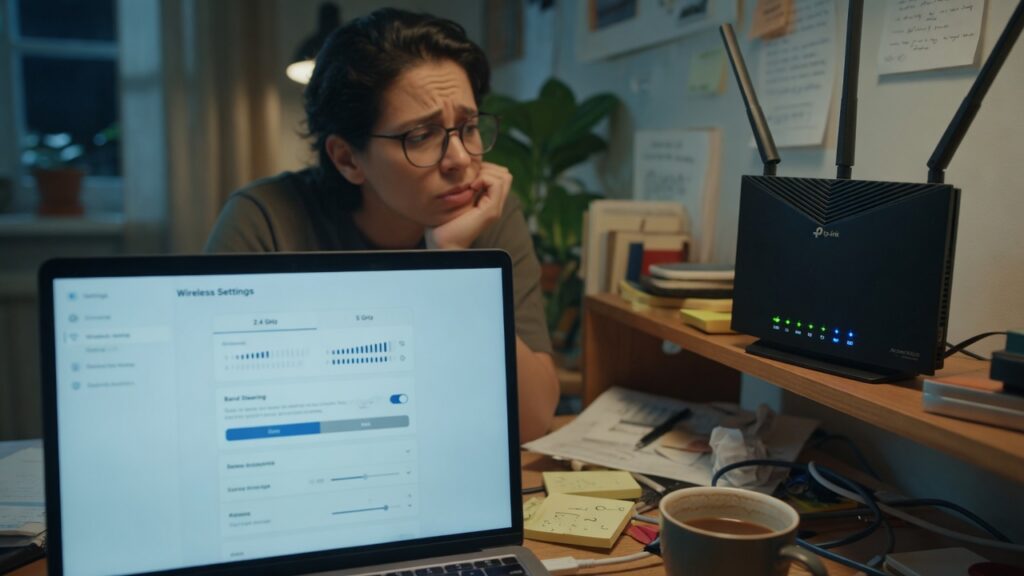
Band steering is one of those features that sounds like it should make life easier but regularly creates more problems than it solves. It’s also one of the settings that comes up most often when people are troubleshooting why a specific device seems unreliable, or why something that worked fine on one network doesn’t work on another.
Here’s what it actually does and how to decide whether to use it.
The idea behind band steering
Most modern routers broadcast two bands: 2.4 GHz (longer range, slower) and 5 GHz (shorter range, faster). Without band steering, you’d typically have two separate networks — HomeNetwork and HomeNetwork_5G — and you’d manually choose which one to connect each device to.
Band steering allows you to use a single network name for both bands. The router then tries to steer each device to whichever band is better for it. A phone close to the router: 5 GHz. A device far away with weak signal: 2.4 GHz. Automatically, without you doing anything.
It’s a good idea on paper. The execution is inconsistent.
Why it often causes problems
The issue is that band steering is a negotiation, not a command. Routers can suggest which band a device should use, but devices make the final connection decision. Some devices don’t respect the steering hints. Some devices are “sticky” — they latch onto a band and don’t switch, even when the signal quality on that band has deteriorated significantly. And different manufacturers implement band steering differently, with varying levels of aggression.
The most common problem people experience: a device that should be on 5 GHz (it’s in the same room as the router) stubbornly stays on 2.4 GHz, getting slower speeds than it should. Or the reverse: a device that needs 2.4 GHz because it’s far away or because it doesn’t actually support 5 GHz gets pointed at 5 GHz anyway, and the connection is unreliable.
Smart home devices cause a specific problem. Many smart plugs, bulbs, and sensors only support 2.4 GHz. During setup, when band steering is active under a single SSID, the setup process may try to push the device onto 5 GHz. The device fails to connect, or the setup fails entirely, and you spend twenty minutes troubleshooting before realizing the network name is the issue.
When band steering works well
On high-end routers and mesh systems with sophisticated implementations — Eero Pro, some higher-end TP-Link Deco models, Netgear Orbi — band steering has gotten noticeably better. These systems use more data about signal strength, device capabilities, and current load to make smarter decisions. On premium mesh hardware, leaving band steering on and letting the system manage it is often a reasonable choice.
Also, if your devices are all modern (from the last three years) and all support 5 GHz, the risk of band steering pushing a device onto the wrong band is lower. The problems multiply when you have a mix of newer and older devices, or smart home gadgets.
The manual approach: separate SSIDs
The alternative to band steering is giving your two bands separate names and manually connecting devices to the appropriate one. This takes more time during initial setup but gives you complete control and eliminates band-related connection issues.
The setup is simple: in your router’s wireless settings, disable the “use same network name for both bands” or “band steering” option, and configure separate SSIDs — something like HomeNetwork for 2.4 GHz and HomeNetwork_5G for 5 GHz.
Then connect devices intentionally:
- Smart home devices, devices far from the router, and older devices that may not support 5 GHz: connect to the 2.4 GHz network
- Laptops, phones when near the router, smart TVs, game consoles: connect to 5 GHz
Yes, you have to do this device by device once. But you only do it once per device, and you know exactly what’s happening with each connection.
The recommendation
If you’re using a high-end mesh system and haven’t had issues, leaving band steering on is fine. These systems have gotten good enough that they handle it well in most households.
If you have smart home devices from various manufacturers, or you’re having unexplained connectivity problems with specific devices, try turning band steering off and separating the SSIDs. A significant number of smart home setup failures and random disconnection issues trace back directly to band steering interference.
If you’re setting up a new system from scratch and want the most reliable outcome, start with separate SSIDs. You can always enable band steering later and test it.
The feature works as advertised on some hardware and frustrates you on others. Knowing that’s the case, and knowing how to adjust it, puts you in control of the outcome.

Connor writes practical guides on Wi-Fi, mesh networks, and home security — breaking down complex IT topics into clear, beginner-friendly steps.
More about me →