How to Reboot Your Home Network the Right Way (Order Matters More Than You Think)
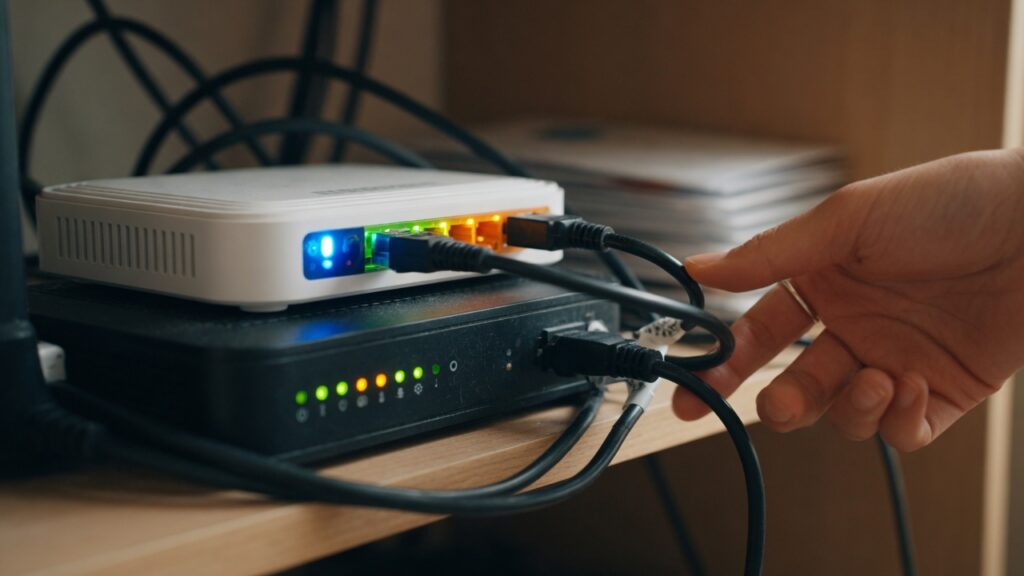
“Have you tried turning it off and back on again?” is genuinely good advice. But most people do it wrong — and then wonder why the problem persisted, or why devices that were online before the reboot still aren’t connecting afterward.
The order in which you restart your network equipment matters. Here’s why, and how to do it correctly.
Why the order matters
Your home network has layers. At the outside edge: your modem, which talks to your ISP and gets the connection into your home. Behind that: your router (or mesh primary node), which takes that connection and distributes it to your devices. If you have mesh nodes or network switches, those come after.
Each layer depends on the one before it. The router needs the modem to be ready before it can establish an internet connection. Your devices need the router to be ready before they can get an IP address and connect. If you reboot everything simultaneously — power-cycling your router and modem at the same time — you often get a race condition where the router comes back online before the modem has fully re-established its connection to the ISP. The router then settles into a state with no internet access and has to be rebooted again, or waits for an automatic retry.
Doing it in the right order eliminates this.
The correct sequence
Step 1: Power off everything — modem, router, mesh nodes, any switches — and leave them off for 30 seconds. This ensures every device fully resets its state and clears any cached connection information.
Step 2: Power on the modem first. Wait for it to fully come online. On most cable or fiber modems, this means waiting for the indicator lights to stabilize — typically 60–90 seconds. The exact indicator varies by device, but you’re looking for the signal/internet light to be solid rather than blinking. Your modem’s manual will tell you which light indicates a successful upstream connection.
Step 3: Power on the router (or mesh primary node). Again, wait for it to fully initialize before moving on — usually 30–60 seconds. Most routers have an LED that goes from blinking to solid when the system is ready.
Step 4: Power on any additional mesh nodes or switches. Once the primary node is up, secondary nodes can find it and establish their connections. This takes another minute or two.
Step 5: Reconnect your devices. By this point, the network infrastructure is fully up. Devices should reconnect automatically. If something doesn’t, toggle its Wi-Fi off and back on.
The full process takes about three to four minutes. Doing it this way avoids the “I rebooted but nothing changed” situation that comes from restarting things simultaneously.
When rebooting actually helps (and when it doesn’t)
Rebooting helps with:
- Slow or intermittent internet after the connection has been working (router memory leak, cached state getting stale)
- IP address conflicts that have developed over time
- A device that connected to the wrong band and won’t let go
- Minor firmware glitches that accumulate during long uptime
- Internet outage that seems to have resolved on your ISP’s end but your connection hasn’t recovered
Rebooting doesn’t help with:
- A hardware failure (if the modem or router is physically faulty, rebooting won’t fix it)
- ISP outage (if your provider’s infrastructure is down, your modem can’t connect regardless)
- Password or credentials issue
- A device that has a software bug requiring its own restart — if one specific device isn’t working and everything else is fine, restart that device, not the whole network
How often should you reboot?
For most home routers, a reboot every few weeks or once a month is a reasonable practice. Many performance degradation issues — especially slowdowns that accumulate over time — are resolved by a regular reboot. Some routers have a scheduled reboot feature; if yours does and you don’t mind the three-minute downtime at 4am, it’s a simple way to keep things fresh.
Modems are generally more stable and need less frequent rebooting. If your modem has been running for months without issue, there’s no need to restart it on a schedule. Restart it when you’re troubleshooting, or when your ISP recommends it.
A note on cable modems
Cable modems have to re-establish a DOCSIS connection to your ISP’s infrastructure when they restart. This process can take several minutes and involves the modem cycling through a set of initialization steps. If you restart a cable modem and it seems to be taking forever to come back up, be patient — two to three minutes is normal. Some cable modems take up to five minutes after a cold start.
Fiber equipment is generally faster to re-establish. If you have fiber, your ONT (Optical Network Terminal) may come back up in under a minute.
The reboot sequence is a small thing. But doing it correctly saves you from the frustration of rebooting and thinking it didn’t work, when really the issue was just the order.

Connor writes practical guides on Wi-Fi, mesh networks, and home security — breaking down complex IT topics into clear, beginner-friendly steps.
More about me →