Configuring Parental Controls on Mesh Wi-Fi to Block Sites on Kids’ Tablets
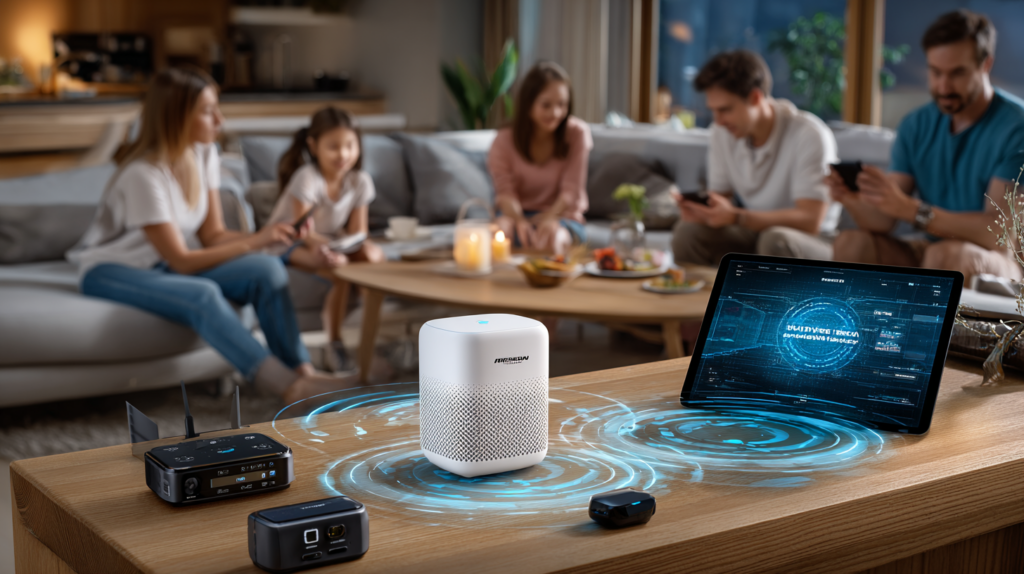
Keeping kids safe online doesn’t require expensive parental control software when you have a mesh Wi-Fi system. Most modern mesh platforms have built-in parental controls that let you filter content, set screen time limits, and pause the internet — all from your phone.
Why Mesh Parental Controls Are the Right Approach
Browser-level or device-level filters are easy for tech-savvy kids to circumvent. Network-level controls on your mesh router apply to all devices on the network, including new ones, and can’t be bypassed by clearing cookies or using incognito mode.
Step-by-Step Setup
Step 1: Open Your Mesh App’s Parental Controls
In Eero, go to Discover → eero Labs or Security. In TP-Link Deco, look under More → Parental Controls. In Google Nest Wi-Fi, use Family Wi-Fi in the Home app. In Netgear Orbi, find Parental Controls in the admin panel.
Step 2: Identify Your Child’s Devices
In the mesh app’s device list, find your child’s tablet or phone. Most apps let you assign a device a name and group it into a family profile. Create a profile per child for individualised controls.
Step 3: Enable Content Filtering
Enable the age-appropriate content filter. Most mesh systems categorise filtered content as: Child (blocks adult content, violence, gambling), Pre-Teen, or Teen. You can also add custom blocked domains (e.g., specific social media platforms) by entering them manually.
Step 4: Block Specific Websites
Use the “Blocked Sites” or “Custom Filter” option to enter specific domain names you want to block (e.g., tiktok.com, roblox.com during school hours). Most systems support wildcard blocking (*.domain.com) to catch subdomains.
Step 5: Set Screen Time / Bedtime
Configure scheduled internet pauses — for example, block Wi-Fi access from 9 PM to 7 AM on school nights. Eero and TP-Link Deco both support per-profile scheduled pauses. This is far more reliable than manually taking the tablet away each night.
Step 6: Enable Safe Search
Some mesh platforms (like Eero with eero Secure) enforce SafeSearch at the DNS level, so Google, YouTube, and Bing automatically filter explicit results regardless of the device’s own settings.
Step 7: Test the Rules
On your child’s tablet, open a browser and try visiting a blocked site. Verify the block page appears. Try the device during a scheduled pause time to confirm internet access is suspended.
Step 8: Adjust as Kids Grow
Review and update profiles at least once a year. Teen profiles should be less restrictive than child profiles. Consider adding trusted homework sites to an always-allowed list.
Prevention and Ongoing Management
Update the mesh firmware monthly to keep security features current. Use the app’s usage reports (available on Eero, Deco, and Orbi) to review which sites your kids visit most, and adjust filters accordingly.
Learn More
For a full guide to securing your home network, see Secure Wi-Fi for Crypto and Blockchain — the principles apply to family security too. Buy now on Amazon.

Connor writes practical guides on Wi-Fi, mesh networks, and home security — breaking down complex IT topics into clear, beginner-friendly steps.
More about me →