Troubleshooting High Latency in Online Gaming on Mesh Networks
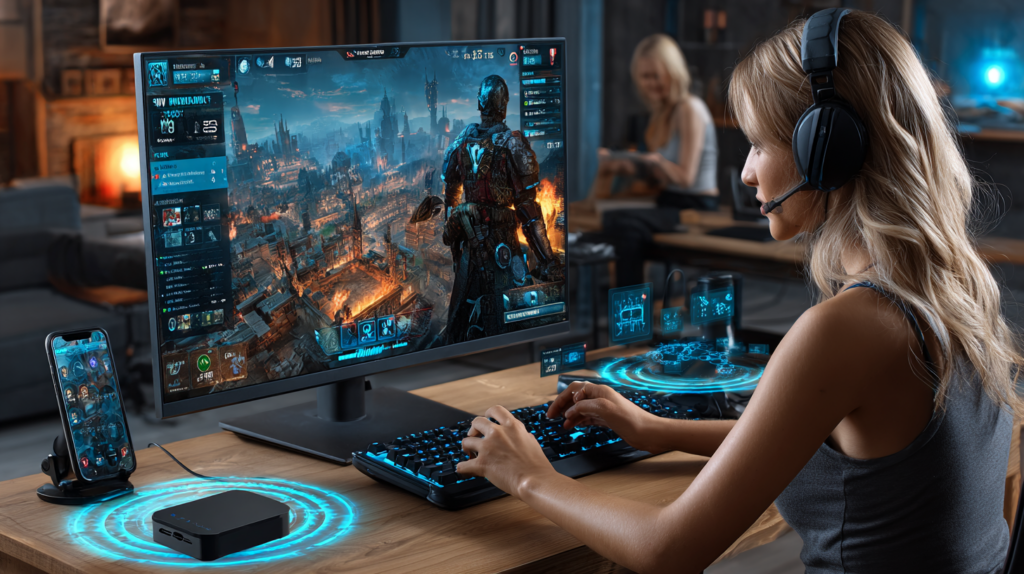
High latency — that rubber-banding, delayed-response feeling during online gaming — is a mesh Wi-Fi problem that’s almost always fixable. The good news is that gaming doesn’t need enormous bandwidth: most online games use less than 1 Mbps. What they need is low, consistent latency (ping), and that’s a different problem to solve.
What Causes High Latency on Mesh Networks
Gaming latency on mesh Wi-Fi typically comes from four sources: wireless hops (each wireless backhaul link between nodes adds 5–15ms), network congestion (someone streaming 4K on the same network), band selection (being on 2.4 GHz instead of 5 GHz), and router/modem bufferbloat — a well-known cause of spiky latency that affects many home routers.
Step-by-Step Fix
Step 1: Measure Baseline Latency
Use DSLReports Bufferbloat Test or Pingtest.net on your gaming device. Note your ping to a nearby server. Anything under 30ms is excellent; 30–70ms is acceptable; over 70ms will cause noticeable lag in competitive games. Identify whether ping is consistently high or spikes unpredictably — different causes, different fixes.
Step 2: Connect via Ethernet if Possible
The fastest fix: run an Ethernet cable from the nearest mesh node’s LAN port to your console or PC. This removes wireless latency entirely. Even a short 3-metre cable to the node in the same room typically reduces ping by 10–20ms and eliminates the spikiness that wireless introduces.
Step 3: Force 5 GHz on the Gaming Device
In your mesh app, find your gaming device and force it to the 5 GHz band. Higher frequency means lower latency in the wireless radio stack. Confirm in the app that the device connected to the 5 GHz band before retesting.
Step 4: Minimise Wireless Hops
Every wireless hop between nodes adds latency. If your console connects to a satellite node that connects to another satellite node that connects to the main router — that’s two wireless backhaul hops. Use the mesh app’s node map to check the topology. Where possible, place a node close enough to the main router to connect directly (one hop only), then connect your console to that node.
Step 5: Set Gaming Device to Highest QoS Priority
In the mesh app’s QoS or Device Priority settings, set your gaming console or PC to the highest priority. This ensures gaming packets get processed before a roommate’s Netflix stream or background downloads.
Step 6: Test for Bufferbloat
Run the DSLReports test again while someone else streams video. If your ping spikes dramatically under load (A/B grade vs D/F grade), you have bufferbloat. Fix: enable QoS / Smart Queue Management (SQM) in your mesh app or router admin. This actively manages queue depth and is the single most effective fix for gaming latency spikes.
Step 7: Check for Channel Congestion
Run WiFi Analyzer to see if your gaming node is on a crowded channel. Switch to a clear 5 GHz channel (36, 40, 44, 48, or a DFS channel) in the mesh app. Less congestion means fewer retransmissions and lower average latency.
Step 8: Update Node Firmware
Firmware updates often include wireless driver improvements that reduce latency. Check your mesh app for updates and install them. Reboot all nodes after updating.
Prevention
Schedule large downloads and updates during off-hours so they don’t compete with gaming sessions. Keep firmware current. If you play competitively, a wired connection is always the right long-term answer.
Learn More
For a complete guide to optimising mesh networks for performance-sensitive applications, see Wi-Fi Made Simple: A Beginner’s Guide to Mesh Networks. Buy now on Amazon.

Connor writes practical guides on Wi-Fi, mesh networks, and home security — breaking down complex IT topics into clear, beginner-friendly steps.
More about me →