Why Your Smart Home Devices Keep Dropping Off Wi-Fi (and the Quick Fix)
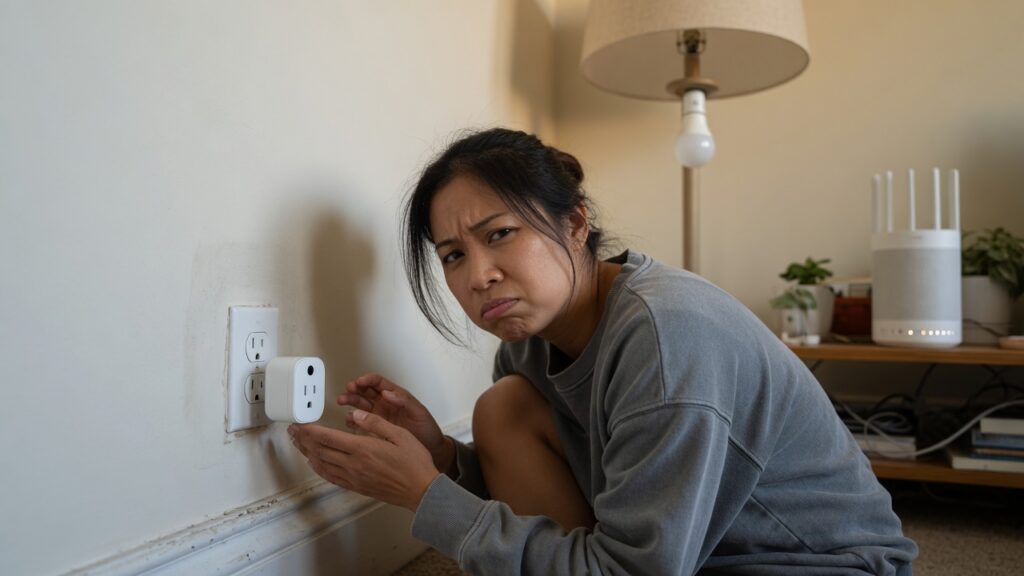
You set up a smart plug. It works great for a week, then one morning your phone says it’s offline. You unplug it, plug it back in, it reconnects. Two weeks later: same thing. Or it’s the thermostat, or the smart bulbs, or the security camera that keeps going offline at three in the morning.
This is one of the most common smart home complaints I hear. The good news is that the cause is almost always one of three things — and at least two of them are easy to fix without touching any hardware.
The most common reason: the 5 GHz problem
Smart home devices — bulbs, plugs, sensors, thermostats, many cameras — typically only support 2.4 GHz Wi-Fi. They don’t support 5 GHz at all. Most people don’t know this, because it’s not printed on the front of the box.
If your router uses the same name (SSID) for both 2.4 GHz and 5 GHz networks, your phone might connect to 5 GHz when you’re setting up the device — and then push that 5 GHz network onto the smart gadget during setup. The device accepts the connection in setup mode, then fails to stay connected in normal use because it can’t actually use 5 GHz.
The fix: during setup, temporarily connect your phone to the 2.4 GHz band. If your router broadcasts both bands under the same name, try giving them separate names (like HomeNetwork and HomeNetwork_5G) so you can choose deliberately. Many smart home apps also ask which network you’re connecting the device to during setup — if yours does, make sure to select 2.4 GHz.
The second most common reason: IP address conflicts
Every device on your network gets an IP address — a number like 192.168.1.45 that identifies it. Your router usually assigns these automatically via DHCP. The problem: routers have a limited pool of addresses to hand out, and when that pool gets shuffled around — after a reboot, after a device reconnects, after too many devices join and leave — some devices can end up fighting over the same address. The result is random disconnections.
The solution is to assign a static (fixed) IP address to your smart home devices. This means the router always gives that specific device the same address, no matter what. The setting is usually called DHCP reservation or IP reservation in your router’s admin panel. You’ll need the device’s MAC address to set it up (find that in the device’s app or in your router’s connected devices list).
It takes five minutes per device and eliminates a whole category of random dropouts.
The third reason: the router is just too far away
2.4 GHz has decent range, but decent isn’t unlimited. A smart plug behind the refrigerator, in a corner of the basement, or near a concrete wall may be sitting right at the edge of your router’s effective range. It connects fine, but the signal is fragile enough that any interference — a microwave running, a neighbor’s network activity, even a poorly-placed metal appliance — is enough to knock it off.
Check your device’s signal strength in its app if you can. Anything below about -70 dBm is marginal; below -80 dBm and you’re going to have regular disconnections. The fix is either moving the router closer (or adding a mesh node closer to the trouble spot), or moving the device to a location where signal is stronger.
A few other things worth checking
Router firmware. Old router firmware has bugs. Manufacturers regularly push updates that fix connection stability issues. Check your router’s admin panel for a firmware update section, or check the manufacturer’s website. If you haven’t updated in two years, it’s worth doing.
2.4 GHz channel congestion. In apartment buildings especially, 2.4 GHz can be badly congested. Log into your router admin panel and look for the wireless channel setting. If it’s set to Auto, try manually setting it to channel 1, 6, or 11 (the non-overlapping channels) — whichever one a Wi-Fi analyzer app shows as least crowded in your area. There are several free Wi-Fi analyzer apps for Android and iOS.
The device itself. Some smart home hardware is just not well-made, and some manufacturers push firmware updates that introduce bugs. If only one specific model keeps disconnecting while everything else is fine, check the manufacturer’s support forum — there’s often a known issue and a fix.
The order to try things
Start with the 5 GHz issue, because it’s the most common and the fastest to diagnose. If that’s not it, check whether setting a static IP helps. If the device is far from the router, deal with the signal strength. Firmware updates are always worth doing regardless.
Most of the time, it’s the 5 GHz problem. Fix that and you’re done.

Connor writes practical guides on Wi-Fi, mesh networks, and home security — breaking down complex IT topics into clear, beginner-friendly steps.
More about me →