Your Router’s Default Password Is a Security Disaster — Change It Right Now
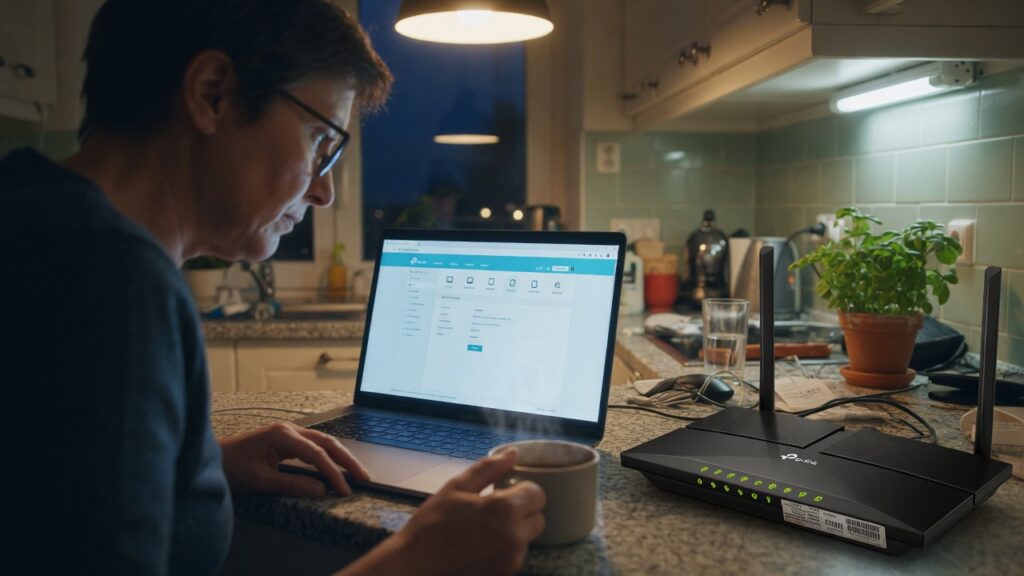
There’s a list online — publicly available, regularly updated — that contains the factory default usernames and passwords for hundreds of router models. Admin/admin. Admin/password. User/1234. The specific defaults for Netgear, TP-Link, Linksys, Asus, and dozens of others. Security researchers publish it. So do the people who use it to break into home networks.
Your router shipped with one of those defaults. Unless you’ve changed it, that password is still there.
Two passwords, two different problems
Most people know about their Wi-Fi password — the one you type on your phone when you connect to the network. But routers actually have two separate passwords, and both of them matter.
The Wi-Fi password controls who can join your network. If it’s weak or guessable, someone nearby can connect to your internet.
The router admin password controls who can change your router’s settings. If someone gets into your admin panel, they can redirect all your internet traffic through a server they control, disable your firewall, set up a fake DNS that sends you to phishing sites instead of the real ones, or simply lock you out of your own router. This is considerably worse than someone just using your Wi-Fi.
The admin interface is usually only accessible from inside your network — so you might think “if they’re already on my network, I have bigger problems.” That’s partially true, but there are scenarios where the admin interface is exposed to the internet, or where a malicious device already on your network (a compromised smart gadget, for instance) could probe it. Default credentials make any of those attacks trivial.
Change both passwords. Today.
How to change your router admin password
Open a browser and type your router’s IP address into the address bar — usually 192.168.1.1 or 192.168.0.1. Log in with the current credentials (probably on the sticker on the bottom of the router). Find the administration or settings section — different routers call it different things, but you’re looking for something like Administration, System, Management, or Advanced Settings. There you’ll find the option to change the admin password.
Make the new password something long and genuinely random. Not your birthday. Not your address. Not “Password123!” with an exclamation mark. A password manager can generate something like Wn7kp!rT2mQsLx for you and store it so you never need to remember it. That’s the right approach.
Mesh systems: If you use Eero, Google Nest, or a similar app-managed system, your router admin password is your app account password. Use a strong, unique password for that account. Enable two-factor authentication if the app supports it.
How to change your Wi-Fi password
Same starting point — log in to your router admin panel. Look for the wireless settings, then the security or password section. The field is usually called WPA2 Pre-Shared Key, Passphrase, or simply Password.
A good Wi-Fi password should be at least twelve characters and not a word from the dictionary. A string like purple-finch-17-harbor is harder to crack than P@ssw0rd! despite looking simpler, because length matters more than special characters. If you have a password manager, use it to generate something random and store it there.
After you change the Wi-Fi password, all your devices will be disconnected and will need to reconnect with the new one. Yes, this is annoying. Do it anyway.
While you’re in there
Check two more things:
Remote management. Some routers have a setting that allows the admin panel to be accessed from outside your home network, over the internet. It’s occasionally turned on by default, particularly on older models. Find it (usually under Advanced or Administration) and turn it off unless you have a specific reason to keep it on.
Guest network. If you have guests over regularly, give them a separate guest network with its own password rather than your main Wi-Fi password. A guest network is isolated from your main devices, and you can change its password without affecting anything on your primary network. I’ll cover guest networks properly in a future post, but enabling the feature and setting a password is straightforward — most routers have a Guest Network section in the wireless settings.
How often should you change these?
Router admin password: change it once from the default, then again if you think it’s been compromised. No need to change it every few months.
Wi-Fi password: change it when you’ve shared it widely and want to clean up access, or when someone moves out, or when you think a device that shouldn’t be on your network got access. Otherwise, a strong password you set once is fine.
The goal isn’t to create ongoing maintenance. It’s to close an obvious hole that takes about ten minutes to fix and that a lot of people never get around to.

Connor writes practical guides on Wi-Fi, mesh networks, and home security — breaking down complex IT topics into clear, beginner-friendly steps.
More about me →