Apartment Wi-Fi: How to Get Good Signal When You’re Surrounded by Neighbors
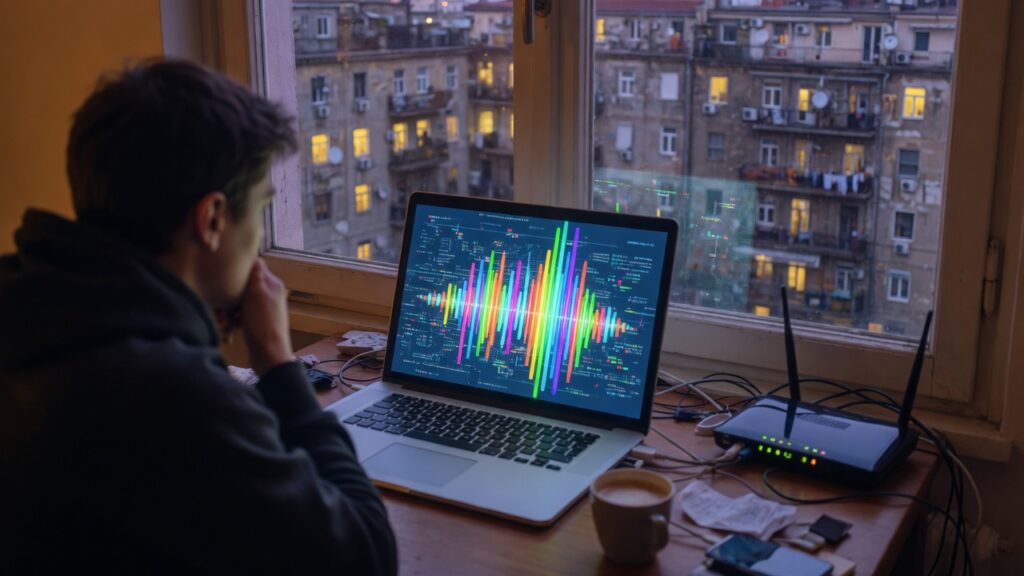
Apartment buildings are the worst-case scenario for Wi-Fi. You’re surrounded by dozens of other networks all operating on the same limited radio spectrum. Your neighbors’ routers are broadcasting through the walls into your space. You’re dealing with both signal interference and channel congestion, and the combination can make even a good router perform badly.
The good news: there are specific, effective steps to take. The situation is manageable. Here’s how to approach it.
Why apartments are different from houses
In a detached house, your biggest Wi-Fi problem is range — getting signal to reach the far corners. In an apartment, range usually isn’t the issue. Your apartment isn’t that large. The issue is interference: too many Wi-Fi signals competing for the same frequencies in a small area.
The 2.4 GHz band has three non-overlapping channels (1, 6, and 11). In a large apartment building, you might have 20 or 30 networks all trying to use those three channels simultaneously. They interfere with each other, causing retransmissions, slower speeds, and inconsistent connections. Even your 5 GHz signal, which has more available channels, can get congested in dense buildings.
Step 1: Use a Wi-Fi analyzer to see what you’re dealing with
Before making any changes, understand the radio environment. A free Wi-Fi analyzer app (WiFi Analyzer on Android; Network Analyzer on iOS; the built-in Wireless Diagnostics tool on macOS) shows you all the networks visible from your location, which channels they’re on, and their signal strength.
What you’re looking for: which channels are least congested. On 2.4 GHz, pick whichever of channels 1, 6, or 11 has the fewest competing networks. On 5 GHz, you have more channels to work with (36–165 in most countries) — look for one that’s empty or near-empty.
Log into your router’s admin panel and manually set the channel to the least congested option. Avoid “Auto” channel selection — in dense environments, auto channel algorithms often make poor choices.
Step 2: Use 5 GHz wherever you can
The 5 GHz band has more available channels, shorter range (which means your neighbors’ signals don’t reach as far into your apartment), and is generally less crowded than 2.4 GHz in dense buildings. Actively connect your laptops, phones, and streaming devices to 5 GHz.
Reserve 2.4 GHz for devices that need the range (unlikely in a small apartment) or devices that only support 2.4 GHz (many smart home gadgets).
If you have band steering enabled, you might consider disabling it and setting up separate SSIDs for 2.4 and 5 GHz — as covered in the band steering post — so you can control exactly which band each device uses.
Step 3: Router placement still matters
Even in a small space, placement makes a difference. Get the router off the floor, away from the microwave, and away from corners. A central placement spreads signal more evenly across the apartment. Particularly in concrete buildings, getting the router off a concrete floor makes a meaningful difference.
In a small apartment, you likely don’t need a mesh system for coverage — one well-placed router should reach everything. The bigger issue is interference, not range.
Step 4: Consider Wi-Fi 6 for its denser-environment performance
Wi-Fi 6 was specifically designed with dense environments in mind. Features like OFDMA (better channel sharing) and Target Wake Time (reduced interference from IoT devices) make it perform better in congested settings than Wi-Fi 5 or older. If you’re shopping for a new router and you’re in an apartment building, Wi-Fi 6 is a more compelling upgrade case than it would be in an isolated house.
The BSS Coloring feature in Wi-Fi 6 helps devices distinguish between your network’s transmissions and neighboring networks on the same channel, reducing interference effects. It’s not magic, but it helps.
Step 5: Check your router’s transmit power setting
Some routers allow you to reduce transmit power. In an apartment, a lower transmit power can actually improve your network’s performance: it reduces the range of your signal, which means less interference with your neighbors, and in turn means they’re less likely to interfere back with you. A signal that doesn’t reach three floors in every direction causes less channel contention than one that does.
Look for transmit power in your router’s wireless settings. If it’s set to 100%, try reducing it to 50% or 75% and see if channel congestion indicators improve in your Wi-Fi analyzer.
Managing expectations
Some apartment situations are genuinely difficult. A building with 200 units, all with their own routers, all on 2.4 GHz, in a concrete construction where you can hear your neighbors through the walls — that’s a challenging radio environment. You can improve it meaningfully with channel optimization and 5 GHz, but you can’t fully escape it.
If you’re in a situation where interference is persistently bad despite optimization, wired ethernet for your most bandwidth-sensitive devices (gaming console, desktop computer, TV) removes those devices from the wireless contention problem entirely. Use Wi-Fi for the devices that need to move; use cable for the ones that don’t.
The combination of a good router, a well-chosen 5 GHz channel, and strategic use of ethernet covers most apartment Wi-Fi problems. It won’t feel like a house on a rural property, but it can feel a lot better than it does out of the box.

Connor writes practical guides on Wi-Fi, mesh networks, and home security — breaking down complex IT topics into clear, beginner-friendly steps.
More about me →