Integrating a Smart Thermostat into Your Mesh Wi-Fi Without Signal Loss
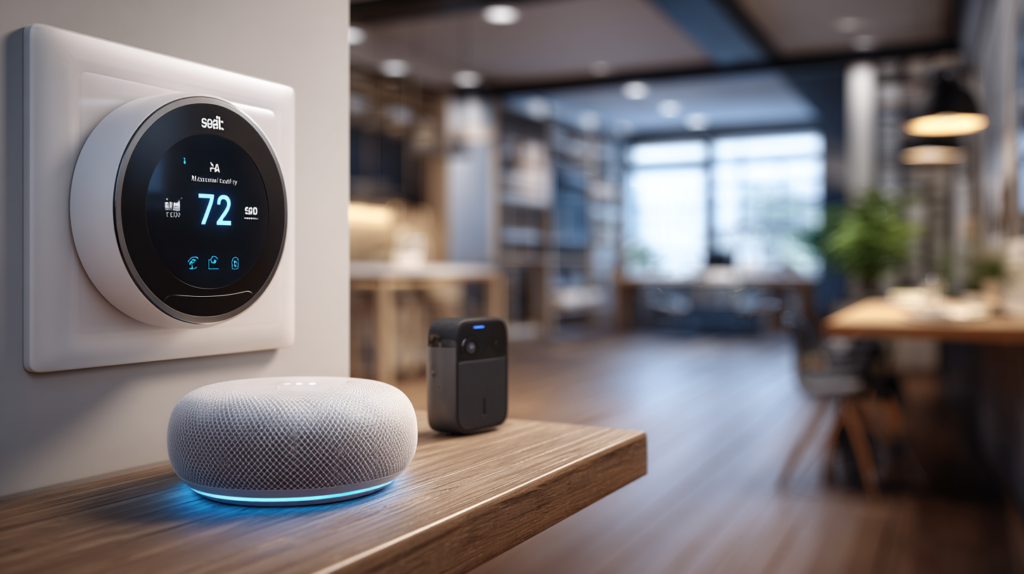
Smart thermostats like the Nest or Ecobee are game-changers for home comfort and energy saving — but integrating one into a mesh Wi-Fi system can sometimes cause signal drops or connection failures. The fix is straightforward once you understand why it happens.
Why Signal Loss Happens
Smart thermostats typically rely on the 2.4 GHz Wi-Fi band for its longer range. Problems arise when a mesh system’s automatic band selection or nearby interference pushes the thermostat off its optimal connection. Thick walls, metal fixtures, or distance from a node make things worse.
Step-by-Step Integration Guide
Step 1: Check Thermostat Wi-Fi Requirements
Confirm the thermostat’s supported Wi-Fi bands (most use 2.4 GHz only) and security protocols (WPA2). In your mesh app, verify there are no band restrictions blocking 2.4 GHz devices.
Step 2: Choose the Right Location
Install the thermostat within 15–20 feet of a mesh node, ideally with a clear line of sight. Avoid metal objects, appliances, and thick concrete walls. Test signal strength with the thermostat app before mounting.
Step 3: Add a Dedicated Node if Needed
If the thermostat is far from any existing node, place a new node in the adjacent hallway. Use the mesh app to pair it in 2–5 minutes, then verify coverage at the thermostat location.
Step 4: Configure the Wi-Fi Network
Use the thermostat’s app to connect to your mesh network. On a combined 2.4/5 GHz network, the thermostat auto-selects 2.4 GHz. Enter your Wi-Fi password and save.
Step 5: Adjust Mesh Settings for Stability
Disable Band Steering or Smart Connect in the mesh app to lock the thermostat to 2.4 GHz. Set the 2.4 GHz channel manually to 1, 6, or 11 to avoid crowded channels. Use Device Prioritization/QoS to give the thermostat stable bandwidth.
Step 6: Minimise Interference
Move cordless phones, baby monitors, and Bluetooth devices away from the thermostat and its node. Ensure the node isn’t behind a large TV or inside a metal cabinet.
Step 7: Update Firmware
Check for firmware updates in both the mesh app and the thermostat app. Reboot after updates and confirm the thermostat reconnects automatically.
Preventing Future Signal Loss
Update firmware monthly, limit 2.4 GHz devices to reduce congestion, and reassess node placement seasonally if furniture moves.
Learn More
For tips on integrating smart home devices into mesh networks, see Wi-Fi Made Simple: A Beginner’s Guide to Mesh Networks. Buy now on Amazon.

Connor writes practical guides on Wi-Fi, mesh networks, and home security — breaking down complex IT topics into clear, beginner-friendly steps.
More about me →