Optimizing Mesh Wi-Fi for 4K Streaming on a Living Room TV
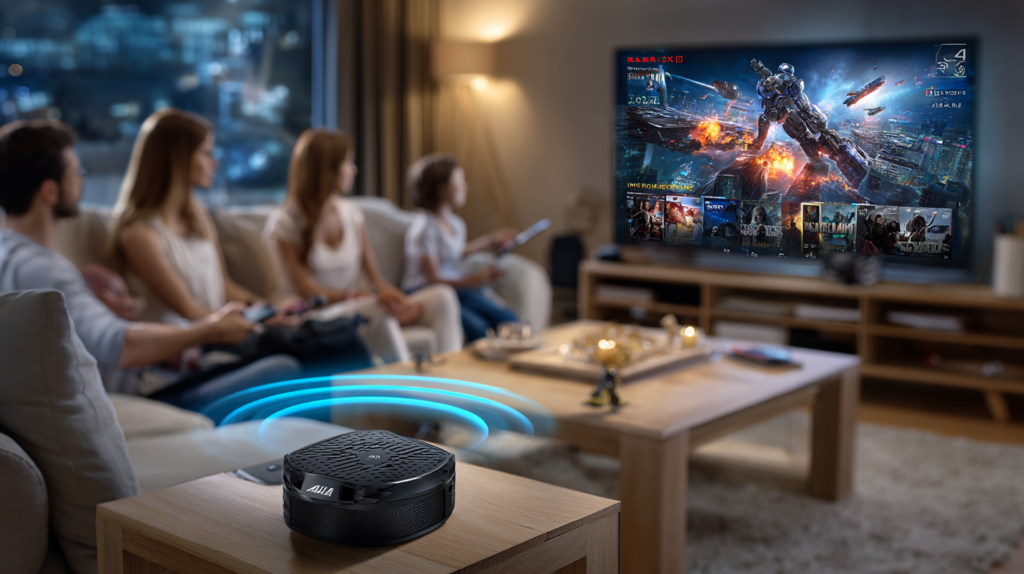
Buffering during a 4K film is one of the most frustrating Wi-Fi experiences there is. The good news: it’s almost always fixable without upgrading your broadband plan. The problem is nearly always how your TV connects to your mesh network, not how fast your internet is.
What 4K Streaming Actually Needs
Netflix, Disney+, and YouTube 4K streams require 25–40 Mbps sustained download per stream. That’s not a lot — most broadband plans deliver this easily. The problem is getting that speed reliably from your mesh node to your TV without degradation. A TV connecting to a distant node over 2.4 GHz, with three walls in between, won’t achieve that even on a 200 Mbps broadband plan.
Step-by-Step Optimisation
Step 1: Run a Speed Test on the TV
Use the built-in speed test on your smart TV (available in network settings on Samsung, LG, and Android TVs) or install the Speedtest app. Target at least 40 Mbps download for reliable 4K. If you’re getting less, the connection between TV and mesh is the problem, not your ISP.
Step 2: Connect the TV via Ethernet if Possible
A wired connection from your nearest mesh node to the TV is the single best upgrade you can make. Even a short Ethernet run delivers full LAN speeds, zero interference, and rock-solid stability. Most mesh nodes have at least one LAN port for exactly this purpose.
Step 3: Move a Node Closer to the TV
If Ethernet isn’t possible, place a dedicated mesh node in the living room specifically to serve the TV. Position it within 5–10 feet of the TV, on the same shelf unit if practical. Verify it connects to the backhaul network at a strong signal.
Step 4: Force 5 GHz Connection
In your mesh app, identify the TV and force it to the 5 GHz band. 5 GHz supports up to 866 Mbps–1.3 Gbps throughput at close range — far more than 4K streaming needs. In the TV’s Wi-Fi settings, connect to the 5 GHz SSID if your mesh separates bands.
Step 5: Set QoS to Prioritise the TV
In your mesh app’s QoS or Device Priority settings, set the TV to high priority. This reserves bandwidth for streaming during periods when other household devices compete for the connection.
Step 6: Check for Interference
Move any cordless phone bases, baby monitors, or Bluetooth devices away from the living room node. Use WiFi Analyzer to confirm the node is on a clear channel — switch to a less congested 5 GHz channel (e.g., 36, 40, 44) if needed.
Step 7: Update Firmware on Both Node and TV
Check the mesh app for node firmware updates and install them. On the TV, go to Settings → Support → Software Update to check for TV firmware. Outdated TV firmware sometimes has Wi-Fi driver bugs that cause streaming drops.
Prevention
Reassess the TV’s connection speed every few months. If you add more streaming devices in the living room, consider a dedicated node just for that room or wire everything through a network switch connected to the mesh node.
Learn More
For everything you need to know about mesh networks and streaming performance, see Wi-Fi Made Simple: A Beginner’s Guide to Mesh Networks. Buy now on Amazon.

Connor writes practical guides on Wi-Fi, mesh networks, and home security — breaking down complex IT topics into clear, beginner-friendly steps.
More about me →