How to Set Up a VPN on Your Router (and Why You Might Actually Want To)
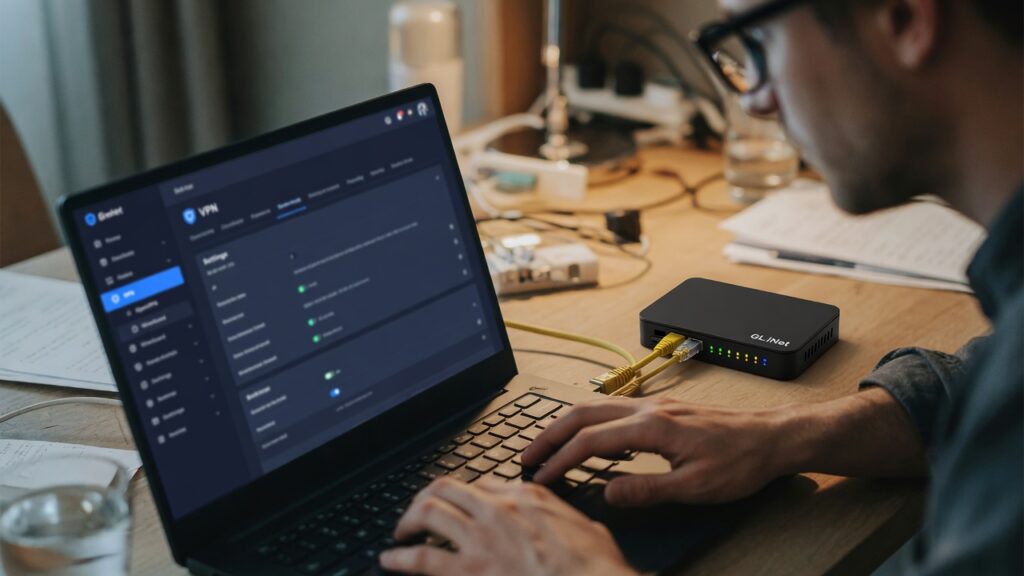
A VPN on your phone protects your phone. A VPN app on your laptop protects your laptop. Neither one covers your smart TV, your gaming console, your smart home hub, or any other device that connects to the internet but doesn’t run VPN apps.
A VPN configured directly on your router is different. Every device in your home routes its traffic through the VPN automatically — whether or not it has an app installed, whether or not you remember to turn it on. The protection is network-wide, by default.
That’s the appeal. Here’s how it works and what it actually takes to set up.
What a router-level VPN does (and doesn’t do)
When you connect to a VPN, your traffic is encrypted and routed through a VPN server before reaching its destination. Someone watching your internet connection — your ISP, someone on the same network, in some cases your government — sees encrypted traffic going to a VPN server, not the actual sites and services you’re using.
At the router level, this applies to everything connected to your home Wi-Fi. Your smart TV’s data goes through the VPN. Your kids’ tablets. Your spouse’s phone. Your IoT devices. You don’t have to configure anything per device.
What it doesn’t do: make you anonymous online (the VPN provider sees your traffic), protect you from malware or phishing (that’s a different problem), or speed up your connection (it usually adds some latency). It also doesn’t protect devices that are on cellular data rather than your home Wi-Fi.
Do you actually need this?
Not everyone does. The people for whom router-level VPN makes the most sense:
- Crypto holders or anyone managing sensitive financial activity at home who wants an extra privacy layer
- Remote workers concerned about exposing company access credentials
- People in regions where ISP surveillance is a concern
- Privacy-conscious households who want consistent protection across all devices
If you’re mainly interested in a VPN for specific tasks (accessing geo-restricted content, protecting yourself on public Wi-Fi), a device-level app may be more practical — you can turn it on when you need it and off when you don’t.
What your router needs to support
Not every router can run a VPN. You need a router that supports VPN client mode — meaning it can act as a VPN client, connecting to a VPN server on behalf of your whole network. Most ISP-provided routers don’t support this. Many consumer routers do, particularly those running OpenWrt, DD-WRT, or routers from brands like Asus (which has built-in VPN client support in its firmware), GL.iNet, or pfSense/OPNsense setups.
Check your router’s documentation or manufacturer’s website before assuming it supports VPN client mode. If yours doesn’t, you have a few options: replace it with one that does, add a dedicated VPN router inline (GL.iNet makes small, affordable options), or stick with device-level VPN apps.
Choosing a VPN provider
You’re replacing your ISP as the entity that sees your traffic with the VPN provider. Choose someone trustworthy.
Providers I’d look at: Mullvad (no accounts required, strong privacy stance, independently audited) and ProtonVPN (strong reputation, based in Switzerland, open-source clients). Both support WireGuard, which is the current best-practice VPN protocol — fast and well-audited. Both have clearly documented no-logs policies.
Avoid free VPN services. If the VPN is free, the provider’s business model is likely your data. The people to avoid there are the ones monetizing your traffic rather than protecting it.
The setup process (general outline)
The exact steps vary by router model, but the general flow is:
- Subscribe to a VPN provider and download the configuration files for your protocol of choice (WireGuard or OpenVPN are most common).
- Log into your router’s admin interface. Look for a VPN section — usually under Advanced settings.
- Select VPN Client and import your provider’s configuration file, or manually enter the server details, protocol, and credentials.
- Enable the connection and confirm the router is routing traffic through the VPN — your provider’s app or website usually has a way to verify the IP address.
- Test from a device on your network by visiting a site like whatismyipaddress.com and confirming it shows the VPN server’s location, not your home IP.
Asus routers in particular have a reputation for relatively user-friendly VPN client configuration. GL.iNet travel routers are another option — they’re designed to be simple VPN routers and are often used exactly this way.
A few things to know going in
Speed. VPNs add overhead. On a fast home connection (200+ Mbps), a modern VPN with WireGuard will usually saturate the connection without noticeable slowdown for most uses. Older VPN protocols on slower hardware can be a bottleneck. WireGuard is significantly faster than older OpenVPN implementations.
Split tunneling. Some routers allow split tunneling — routing some devices through the VPN and others directly to the internet. Useful if you have a streaming service that blocks VPN traffic and you want to exempt your TV while routing everything else through the VPN.
Kill switch. Check whether your router’s VPN client has a kill switch — meaning if the VPN connection drops, internet access is blocked rather than falling back to your unprotected home connection. Important if the privacy protection is the point.
If the router-level setup feels like too much for now, start with a device-level VPN app on your most-used devices. It’s a meaningful step, and you can always upgrade to router-level later.

Connor writes practical guides on Wi-Fi, mesh networks, and home security — breaking down complex IT topics into clear, beginner-friendly steps.
More about me →